
Review and Approve Schedule Changes
If your program's admin has proposed a change to your child's schedule — like adding or dropping a day — you'll get a notification asking you to review it. Nothing changes until you approve it, so you're always in control of your child's schedule and what you're billed. When you open the request, you'll see your child's current schedule side by side with the proposed one, along with how the change affects your cost. From there, you can approve the change to make it official, or decline if it doesn't work for you.
🔍How do I review and approve schedule changes?
1. Visit Arly via the link provided by your organization.
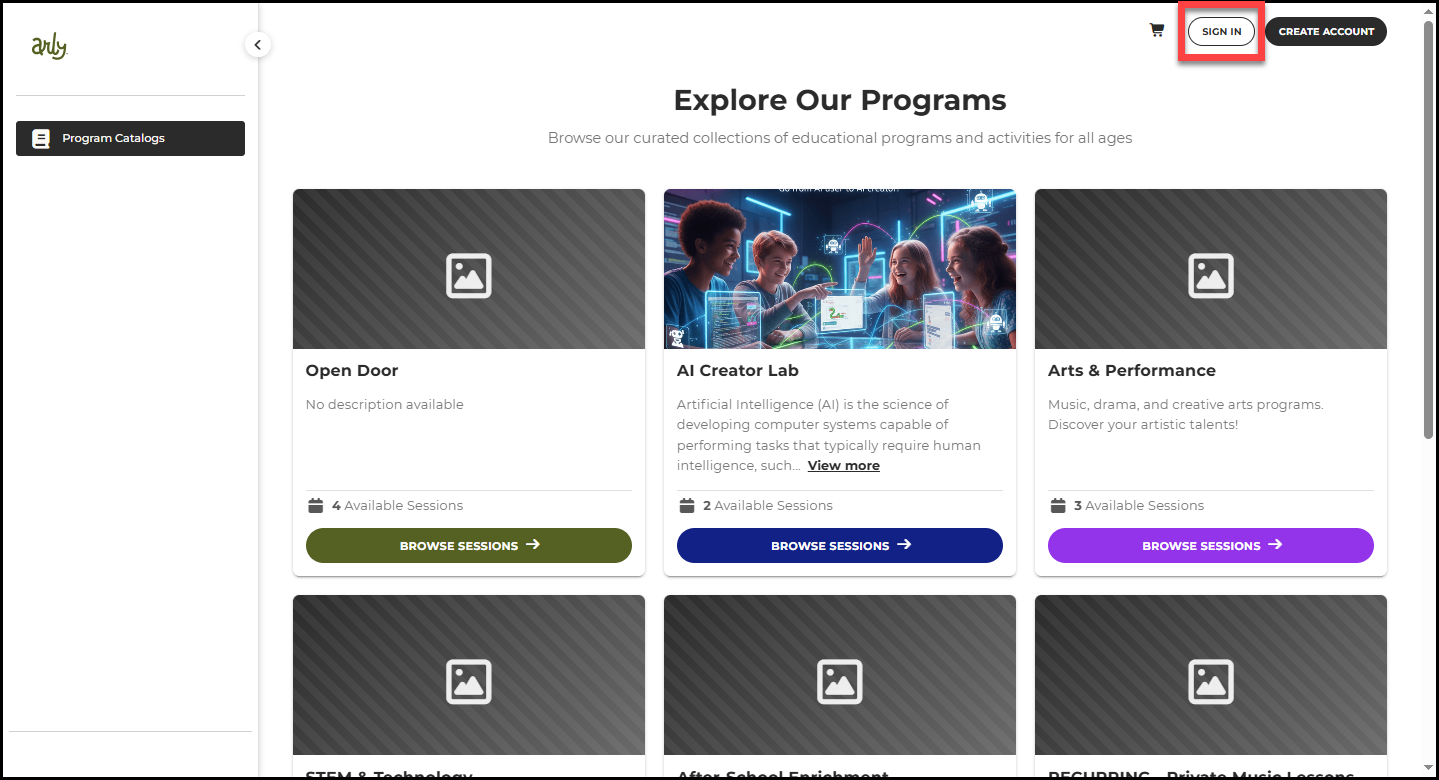
2. Select Sign In.
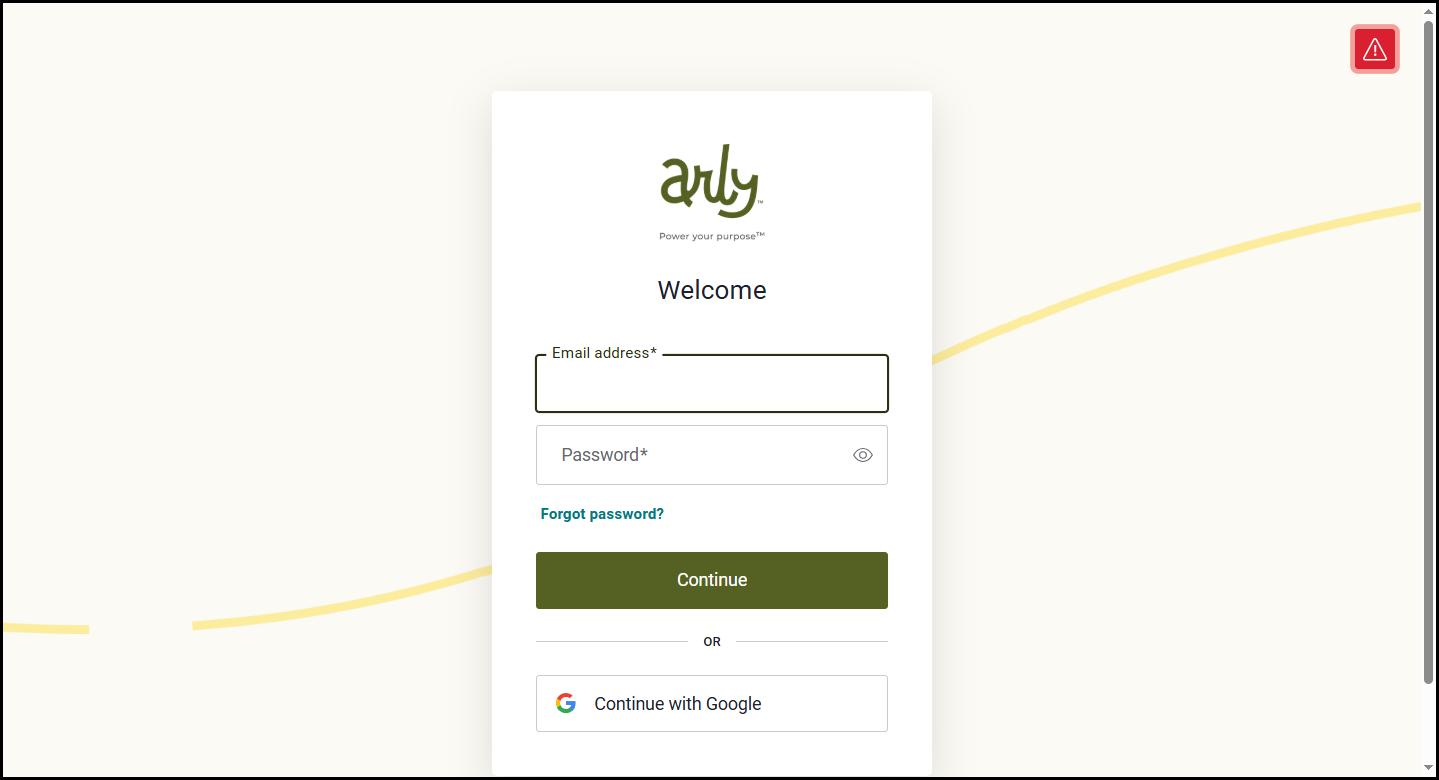
3. Enter your email address and password then select Continue.
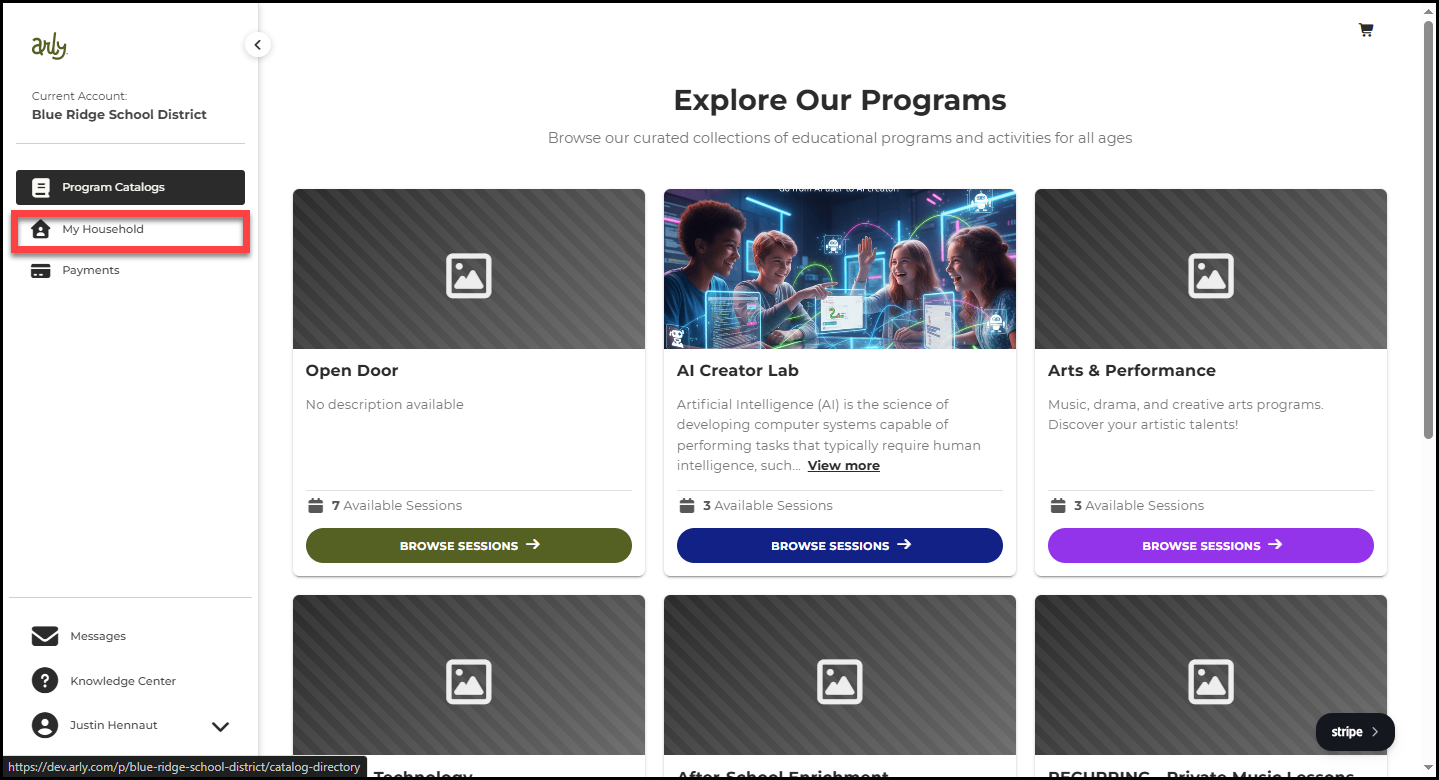
4. Select My Household.
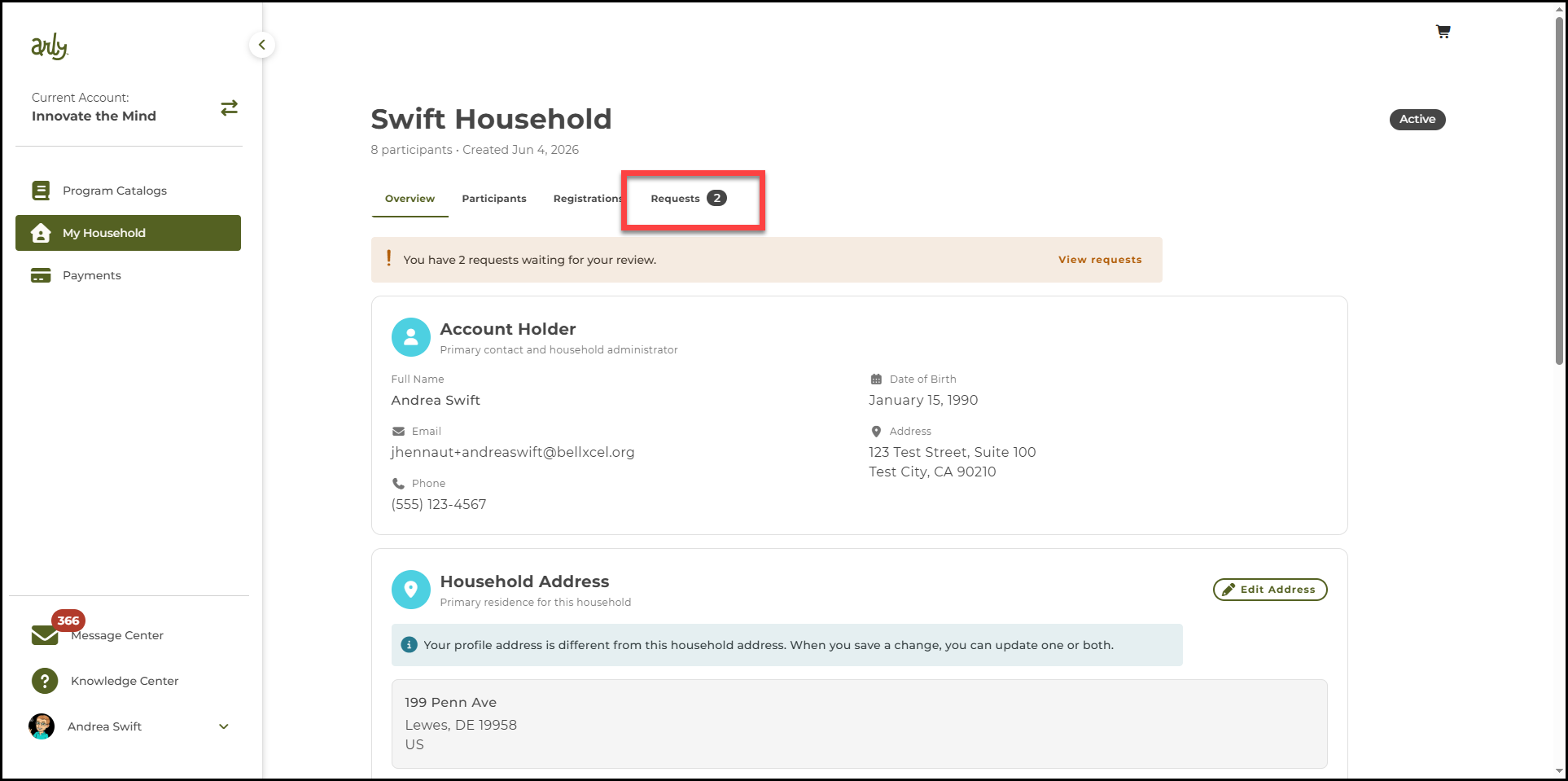
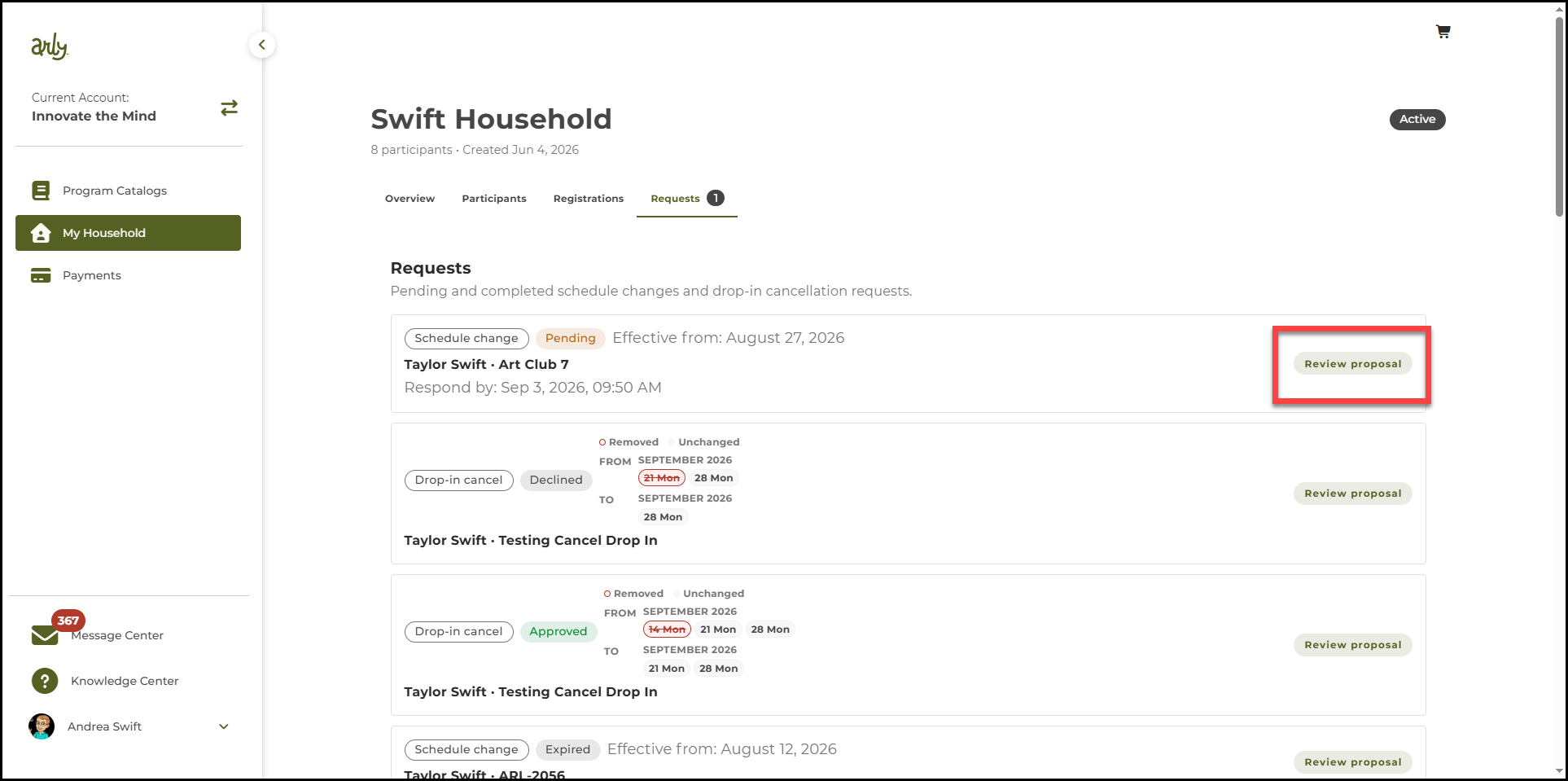
5. Select Requests.
6. Select Review proposal.
7. Review the proposal and select Approve or Decline.
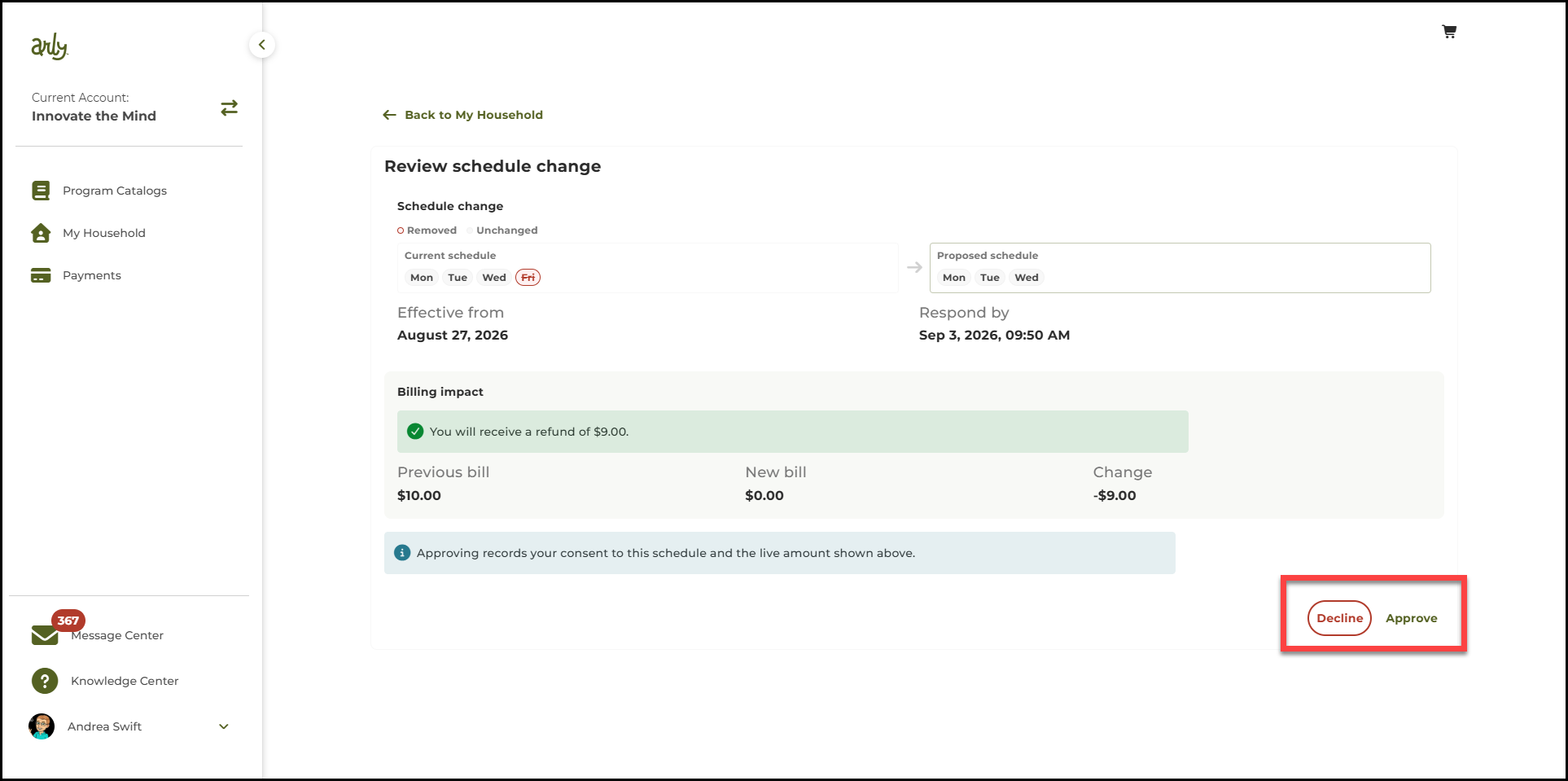
🎉With your approval the participant’s schedule is now changed. With your decline, the participant’s schedule stays the same. You have seven days to review and respond before the proposal expires.